Most people connect dozens of devices to their home Wi-Fi network: smartphones, laptops, smart TVs, cameras, printers, and even smart home devices.

But few people properly secure their network.
An unsecured Wi-Fi network can lead to:
-
Slower internet speeds
-
Data theft
-
Unauthorized access to devices
-
Identity fraud
-
Financial risks
In this step-by-step beginner guide, you’ll learn exactly how to secure your Wi-Fi network using real-world best practices — not just basic advice.
Why Securing Your Wi-Fi Matters (Real Scenario)
Imagine this:
Your neighbor connects to your unsecured Wi-Fi.
They download illegal content or attempt online fraud.
Authorities trace the IP address — which leads to your home network.
Even worse, attackers can:
-
Monitor unencrypted traffic
-
Attempt access to shared files
-
Target weak devices like printers or cameras
Securing Wi-Fi is not just about speed — it’s about digital safety.
Step 1: Change the Default Router Login Credentials
Most routers come with default login details like:
-
Username: admin
-
Password: admin
These are publicly available online.
Why This Is Dangerous
Anyone connected to your Wi-Fi can attempt to access your router settings.
What To Do
-
Access your router’s admin panel (usually 192.168.1.1)
-
Change:
-
Admin username
-
Admin password
-
-
Use a strong, unique password
Use at least 12 characters
Include numbers and symbols
Avoid personal information
Step 2: Enable WPA3 or WPA2 Encryption
Wi-Fi encryption protects the data traveling between your devices and the router.
Types of Wi-Fi Security
| Security Type | Security Level | Recommended? |
|---|---|---|
| WEP | Very Weak | No |
| WPA | Weak | No |
| WPA2 | Strong | Yes |
| WPA3 | Very Strong | Best |
If your router supports WPA3, enable it.
Step 3: Create a Strong Wi-Fi Password
Your Wi-Fi password should not be:
12345678
your phone number
your name + birth year
Instead:
14+ characters
Mix of uppercase, lowercase, numbers
Random structure
Example (just example format):Blue!River92$Cloud
Avoid writing it on visible notes near the router.
Step 4: Disable WPS (Wi-Fi Protected Setup)
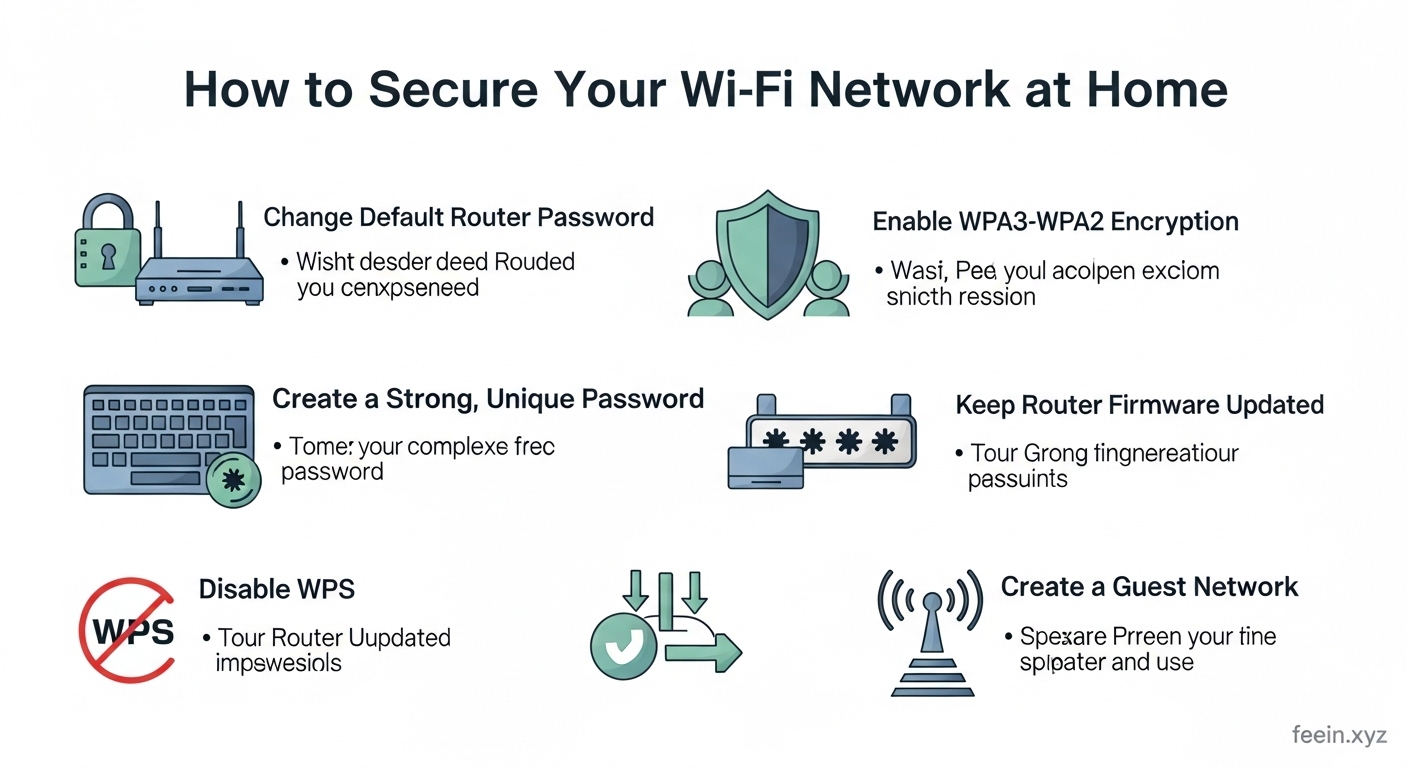
WPS allows devices to connect with a button or PIN.
While convenient, it can be vulnerable to brute-force attacks.
If security is your priority:
Disable WPS from router settings.
Step 5: Change the Default Network Name (SSID)
Default network names like:
-
TP-Link_3421
-
Huawei_5G
-
Linksys_123
Reveal router brand and model.
Attackers may target known vulnerabilities for that model.
Change your SSID to something neutral that does not reveal personal information.
Avoid using your full name or apartment number.
Use something generic and non-identifiable.
Step 6: Enable Firewall Protection
Most routers include built-in firewall features.
Make sure:
Firewall is enabled
Remote management is disabled unless needed
This blocks unauthorized external access attempts.
Step 7: Update Your Router Firmware
Outdated firmware may contain security vulnerabilities.
Manufacturers release updates to fix:
-
Security flaws
-
Stability issues
-
Performance problems
Check for updates in your router settings every few months.
Step 8: Create a Guest Network
If visitors need Wi-Fi access:
Create a guest network
Use separate password
Disable access to local devices
This prevents guests from accessing:
-
Shared folders
-
Printers
-
Smart home systems
Step 9: Limit Connected Devices
Log into your router dashboard and check:
-
Connected devices list
-
Unknown device names
-
Suspicious activity
If you see unknown devices:
Change Wi-Fi password
Reconnect trusted devices only
Common Mistakes People Make
Never Changing Router Settings
Many people never access their router dashboard after installation.
Using the Same Password for Years
Passwords should be updated periodically.
Ignoring Router Placement
Place router in central location — not near windows.
Leaving Remote Access Enabled
Unless you truly need it, disable it.
Advanced (Optional) Security Layer
For users who want additional protection:
-
Enable MAC address filtering
-
Disable SSID broadcast (optional)
-
Use DNS filtering services
-
Monitor network traffic occasionally
These are optional but can enhance security.
How Often Should You Check Your Wi-Fi Security?
Review settings every 3–6 months
Change passwords annually
Update firmware when available
Digital security is not a one-time setup — it requires periodic review.
Conclusion
Securing your home Wi-Fi network is one of the most important steps you can take to protect your digital life.
By:
-
Changing default credentials
-
Enabling strong encryption
-
Using secure passwords
-
Updating firmware
-
Monitoring connected devices
You significantly reduce your risk of unauthorized access and cyber threats.
Even basic security improvements can make a major difference.
FAQ
Q1: Is WPA2 still safe?
Yes, WPA2 is still considered secure, but WPA3 offers stronger protection if available.
Q2: Can someone hack my Wi-Fi easily?
If your network uses weak passwords or outdated security protocols, it becomes much easier.
Q3: Should I hide my Wi-Fi network?
Hiding SSID adds minimal protection but can reduce visibility.
Q4: How do I know if someone is using my Wi-Fi?
Check connected devices in router settings for unfamiliar entries.