Typing a website address into a browser feels almost instant. You enter a domain name, press Enter, and within seconds a fully designed webpage appears on your screen.
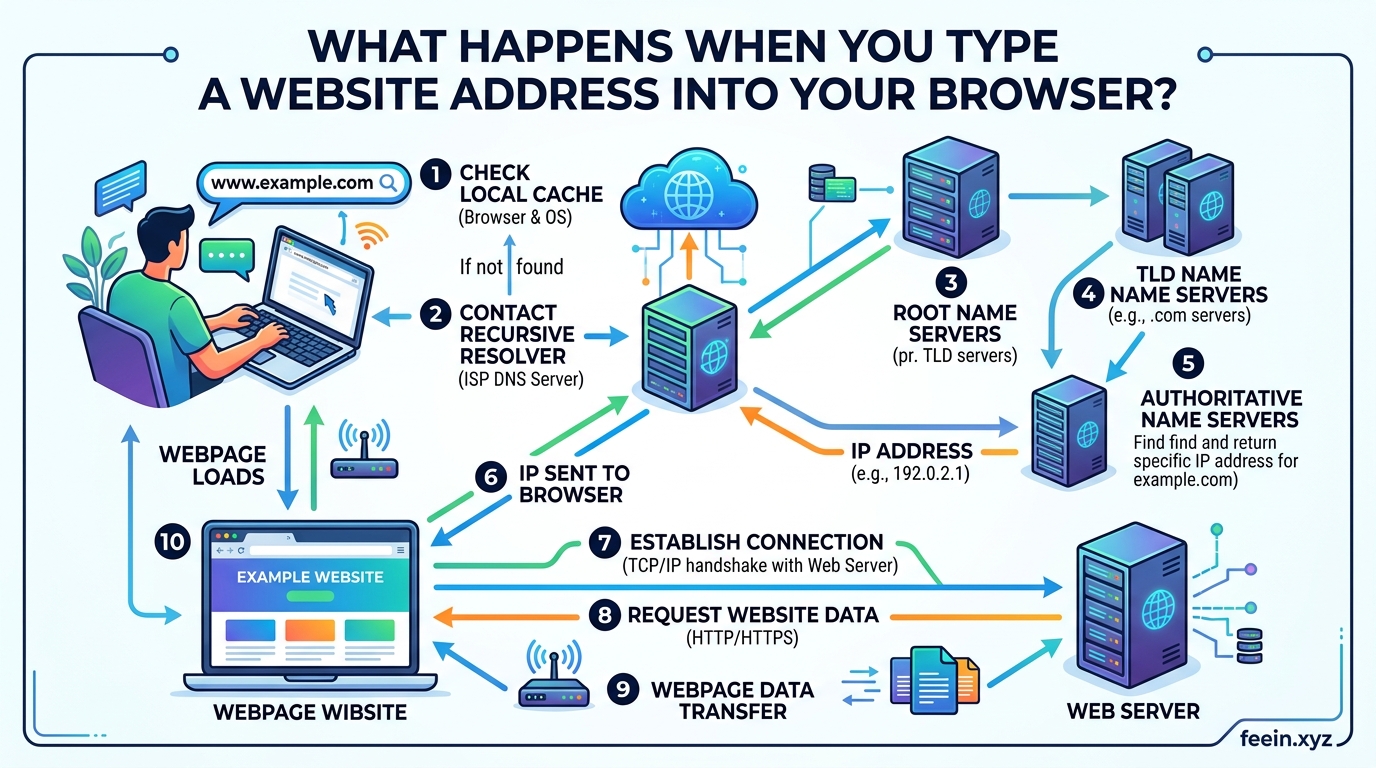
But behind that simple action is a complex chain of technologies working together in milliseconds.
Your browser communicates with multiple systems across the internet, including DNS servers, web servers, content delivery networks, and security protocols. Each step plays a critical role in delivering the website correctly and securely.
Understanding this process not only helps explain how the modern internet works, but also improves awareness of topics like website speed, security, and online privacy.
In this guide, we will break down — step by step — exactly what happens when you type a website address into your browser.
Step 1: The Browser Interprets the URL
When you type a website address such as:
https://example.comyour browser first analyzes the URL structure.
A typical URL contains:
| Component | Example | Purpose |
|---|---|---|
| Protocol | HTTPS | Defines communication rules |
| Domain Name | example.com | Human-readable website address |
| Path | /blog/article | Specific page location |
The browser determines:
- which protocol to use,
- where the website is located,
- and what resource should be requested.
Step 2: The Browser Checks Local Cache
Before contacting the internet, the browser checks whether it already has information stored locally.
This includes:
- cached images,
- DNS records,
- previously loaded files,
- cookies,
- and saved website assets.
Why This Matters
Caching significantly improves performance.
For example:
If you visit the same news website every morning, your browser may already have:
- the logo,
- style files,
- fonts,
- and some scripts stored locally.
Instead of downloading everything again, it reuses stored resources to reduce loading time.
This is one reason websites often load faster on the second visit.
Step 3: DNS Translates the Domain Name Into an IP Address
Humans use domain names like:
google.comBut computers communicate using numerical IP addresses such as:
142.250.191.14To find the correct server, the browser performs a DNS lookup.
What Is DNS?
DNS stands for:
Domain Name System
It acts like the internet’s phonebook.
Real-World Example
Imagine calling a friend.
You remember their name — not their phone number.
Your phone contacts its address book to retrieve the number before making the call.
DNS works similarly:
- You type the domain name
- DNS finds the corresponding IP address
- The browser then contacts the correct server
Step 4: Establishing a Secure Connection (HTTPS & TLS)
Modern websites use HTTPS for secure communication.
Before data is exchanged, the browser and server perform a process called:
TLS Handshake
This establishes:
- encryption,
- authentication,
- and secure communication.
Why HTTPS Is Important
Without HTTPS:
- passwords,
- payment information,
- and personal data
could potentially be intercepted.
HTTPS encrypts communication so third parties cannot easily read transmitted data.
Real-Life Scenario
Using HTTP on public Wi-Fi could expose sensitive information.
HTTPS reduces this risk by encrypting the connection between:
- your browser
- and the website server.
This is why browsers display:
🔒 a lock icon next to secure websites.
Step 5: The Browser Sends an HTTP Request
Once the secure connection is established, the browser sends an HTTP request to the server.
The request includes information such as:
- requested webpage,
- browser type,
- supported formats,
- cookies,
- and device information.
The server now knows:
- who is requesting the page,
- what resource is needed,
- and how to respond properly.
Step 6: The Web Server Processes the Request
The website server receives the request and begins processing it.
Depending on the website, the server may:
- retrieve database information,
- load files,
- process user authentication,
- or generate dynamic content.
Example
On an online store:
the server may retrieve:
- product details,
- prices,
- images,
- and inventory data
before building the webpage dynamically.
This entire process often happens within milliseconds.
Step 7: The Server Sends Back Website Files
The server responds with website resources including:
- HTML
- CSS
- JavaScript
- images
- fonts
- videos
Each file has a different role.
| File Type | Function |
|---|---|
| HTML | Structure of the page |
| CSS | Design and layout |
| JavaScript | Interactive behavior |
| Images/Videos | Visual content |
Step 8: The Browser Renders the Webpage
After receiving the files, the browser begins rendering the page visually.
This is one of the most resource-intensive stages.
The browser:
- reads HTML structure,
- applies CSS styling,
- executes JavaScript,
- downloads additional assets,
- and displays the final layout.
Why Some Websites Load Slowly
Many users assume internet speed is the only factor.
In reality, website performance depends on several elements:
- server speed,
- image optimization,
- JavaScript size,
- caching,
- DNS response time,
- and page complexity.
Practical Example
A website with:
- uncompressed images,
- large animations,
- and excessive scripts
may load slowly even on fast internet connections.
This is why modern websites prioritize:
- lazy loading,
- optimized media,
- and efficient coding practices.
Step 9: Background Processes Continue After Loading
Even after the webpage appears, browsers continue performing background tasks.
These may include:
- loading additional content,
- tracking analytics,
- syncing notifications,
- running scripts,
- and updating dynamic elements.
Modern websites are often continuously communicating with servers in real time.
The Role of Content Delivery Networks (CDNs)
Many modern websites use CDNs to improve speed globally.
A CDN stores website copies on servers in multiple regions.
Instead of loading files from one country, users download them from the nearest server location.
Real-World Impact
If a website’s main server is in Europe:
- users in Canada or Asia may experience slower speeds.
CDNs reduce this delay by distributing files closer to users.
This improves:
- loading speed,
- stability,
- and scalability.
Common Misconceptions About Browsers and Websites
Myth 1: Websites Exist Inside the Browser
The browser only displays website content.
The actual files are stored on remote servers.
Myth 2: Internet Speed Is the Only Performance Factor
Website optimization also matters significantly.
Myth 3: Private Browsing Makes You Anonymous
Incognito mode mainly prevents local history storage.
It does not fully hide activity from websites or internet providers.
Why Understanding This Process Matters
Learning how browsers and websites communicate helps users:
- troubleshoot performance issues,
- improve online security awareness,
- understand website optimization,
- and make better technical decisions.
For website owners, understanding these steps is essential for:
- SEO,
- user experience,
- and site performance optimization.
Typing a website address into your browser triggers a highly sophisticated chain of events involving DNS systems, secure encryption, web servers, rendering engines, and internet infrastructure.
Although the process feels instant, dozens of technical operations occur behind the scenes within seconds.
Understanding how this system works provides deeper insight into the technology we use every day and highlights the complexity of the modern web.
Frequently Asked Questions
Q1: What is the main purpose of DNS?
DNS translates human-readable domain names into IP addresses computers can understand.
Q2: Why do websites use HTTPS?
HTTPS encrypts communication between the browser and the server to improve security and privacy.
Q3: Why do some websites load faster than others?
Factors include server quality, caching, optimization, image size, scripts, and CDN usage.
Q4: Does the browser download the entire website at once?
No. Browsers load many resources separately and often continue background loading after the page appears.
Q5: What happens if DNS fails?
The browser cannot locate the correct server, and the website may not load.