Managing online logins has become increasingly complex. Many people now use dozens of services, including email platforms, work tools, banking apps, social media, and online stores. Remembering unique passwords for each account can quickly become overwhelming.
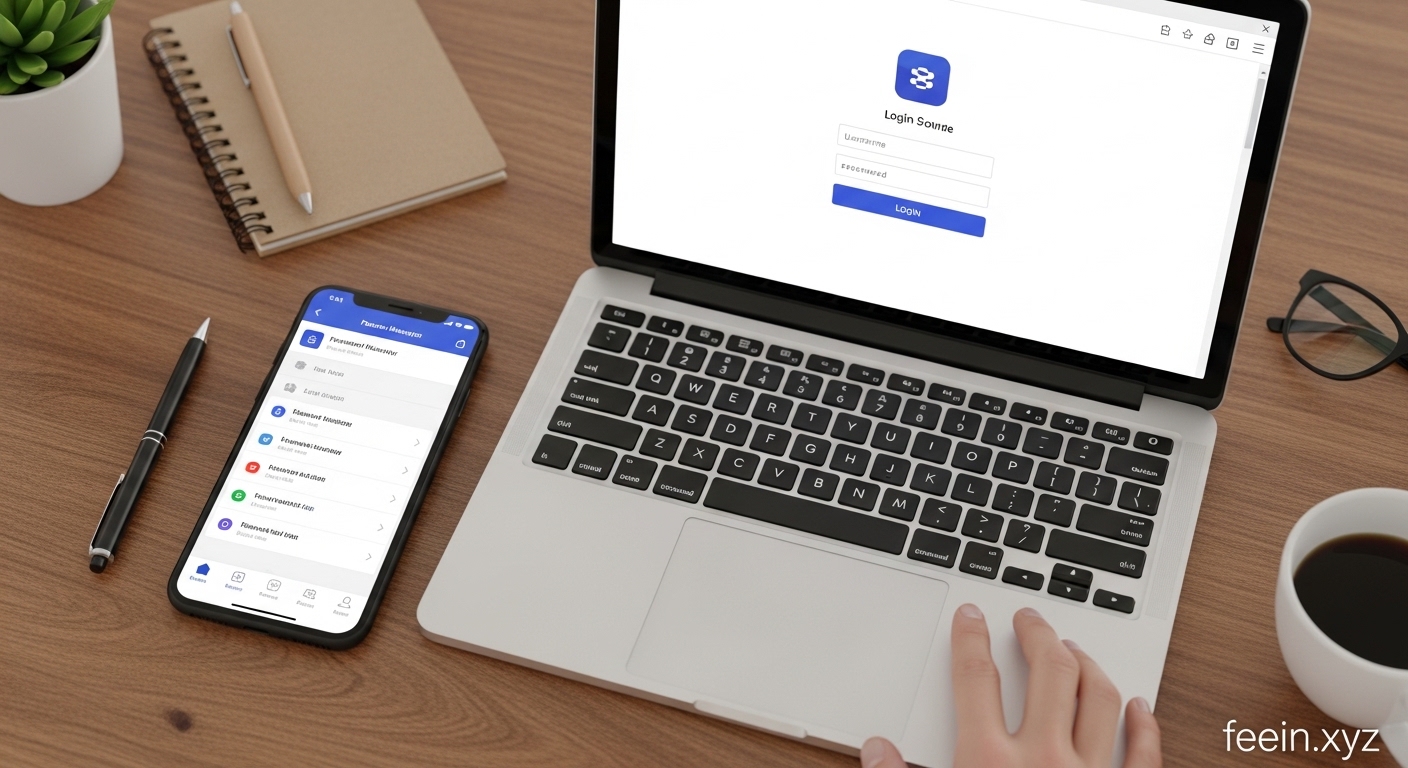
A password manager simplifies this process by securely storing your login details and automatically filling them in when needed. Instead of memorizing multiple passwords, you only need to remember one master password. This approach makes everyday browsing faster, more organized, and easier to manage.
This guide explains how to use a password manager step by step, along with practical tips, real-life scenarios, and common mistakes to avoid.
What Is a Password Manager?
A password manager is a digital tool that securely stores usernames and passwords in an encrypted vault. When you visit a website or open an app, the password manager can automatically fill in your login details.
Most password managers offer:
- Secure password storage
- Automatic login filling
- Password generation tools
- Cross-device syncing
- Organization with folders or tags
These features simplify login management while reducing the need to manually track credentials.
Why Password Managers Simplify Online Logins
Using multiple passwords without a system can lead to:
- Forgotten credentials
- Repeated password resets
- Slow login processes
- Disorganized notes or spreadsheets
- Multiple browser-saved entries
A password manager centralizes everything into one place. This makes logging in faster and reduces friction during daily online activity.
For example, instead of typing a long password each time you log into your email, the password manager fills it instantly.
Step-by-Step: How to Use a Password Manager
Step 1: Choose a Password Manager
Start by selecting a reputable password manager. Most modern tools offer:
- Browser extensions
- Mobile apps
- Desktop versions
- Cloud syncing
Choose one that works across your devices so your logins stay available everywhere.
Step 2: Create Your Master Password
The master password unlocks your vault. It should be:
- Long
- Unique
- Easy for you to remember
- Difficult for others to guess
Example of a strong master password:
GreenCoffee!MorningSky27
Avoid simple patterns such as:
- 123456
- password123
- your name + birth year
Once created, this will be the only password you need to remember.
Step 3: Install the Browser Extension
Most password managers work best with a browser extension. After installing:
- The extension detects login fields
- Prompts you to save new passwords
- Auto-fills saved credentials
This step is what makes logins effortless.
Step 4: Save Your First Login
When you log into a website:
- Enter your username and password
- The password manager will ask to save it
- Click “Save”
- The login is stored in your vault
Next time you visit the site, the password will be filled automatically.
Step 5: Organize Your Password Vault
As you save more accounts, organization becomes important.
You can create categories such as:
- Personal accounts
- Work tools
- Shopping websites
- Banking services
- Social media
This makes searching and managing accounts easier.
Step 6: Use Auto-Fill for Faster Logins
Once credentials are saved:
- Visit a website
- Click login field
- Select saved account
- Password fills automatically
This removes the need to manually type passwords.
Example: Everyday Use Case
Imagine you log into:
- Project management tool
- Analytics dashboard
- Cloud storage
- Messaging app
Without a password manager, this might take several minutes. With one, each login takes seconds.
Over time, this saves effort and keeps your workflow smooth.
Using a Password Manager Across Devices
Most password managers sync across:
- Laptop
- Smartphone
- Tablet
- Desktop computer
This means:
- Save password on laptop
- Use it instantly on phone
- Access same accounts everywhere
This is particularly useful for remote work and multi-device users.
Tips to Make Password Managers More Effective
Use Auto-Generated Passwords
Many password managers can generate strong passwords automatically. This reduces the need to create your own.
Review Saved Logins Regularly
Occasionally check your vault to:
- Remove unused accounts
- Update old passwords
- Organize categories
Enable Auto-Lock
Auto-lock ensures your vault closes after inactivity. This helps maintain privacy on shared devices.
Keep Your Master Password Private
Never share your master password or store it in plain text.
Common Mistakes to Avoid
Saving Passwords in Multiple Places
Avoid storing passwords in:
- Notes apps
- Emails
- Documents
- Browsers + password manager together
Stick to one secure system.
Choosing a Weak Master Password
Your master password protects everything. Make it strong and unique.
Ignoring Updates
Password manager updates often improve performance and compatibility. Keep apps updated.
Not Backing Up Recovery Options
Some tools provide recovery keys. Save them securely.
Benefits of Using a Password Manager
Using a password manager simplifies your digital routine by:
- Reducing login time
- Organizing accounts
- Minimizing password resets
- Improving workflow efficiency
- Keeping credentials in one place
These benefits become more noticeable as the number of accounts increases.
When a Password Manager Is Most Helpful
Password managers are especially useful when:
- You manage many online accounts
- You work across multiple devices
- You frequently log into dashboards
- You collaborate with teams
- You want a more organized login system
They help reduce friction in daily online activity.
Using a password manager is one of the simplest ways to organize and streamline your online logins. By storing credentials securely and auto-filling them when needed, these tools remove the hassle of remembering multiple passwords.
With a proper setup, you can access your accounts quickly, keep your logins organized, and simplify your digital workflow. Even beginners can start using a password manager in just a few minutes.
As online accounts continue to grow, having a centralized system for managing passwords becomes increasingly practical.
FAQ
Q1: Do I need technical knowledge to use a password manager?
No. Most password managers are designed for beginners and require minimal setup.
Q2: Can I use a password manager on multiple devices?
Yes. Most tools sync across phones, laptops, and desktops.
Q3: Will it automatically fill login forms?
Yes. After saving a login, it can auto-fill credentials.
Q4: Is using one master password enough?
Yes. The master password unlocks all stored credentials.
Q5: Can I organize passwords into categories?
Yes. Most password managers allow folders or tags for organization.