Most people today manage dozens of online accounts, including email, banking, shopping, work tools, and social media. As the number of accounts grows, keeping passwords organized becomes increasingly difficult. Many users rely on memory, browser autofill, or scattered notes, which often leads to confusion and inefficiency.
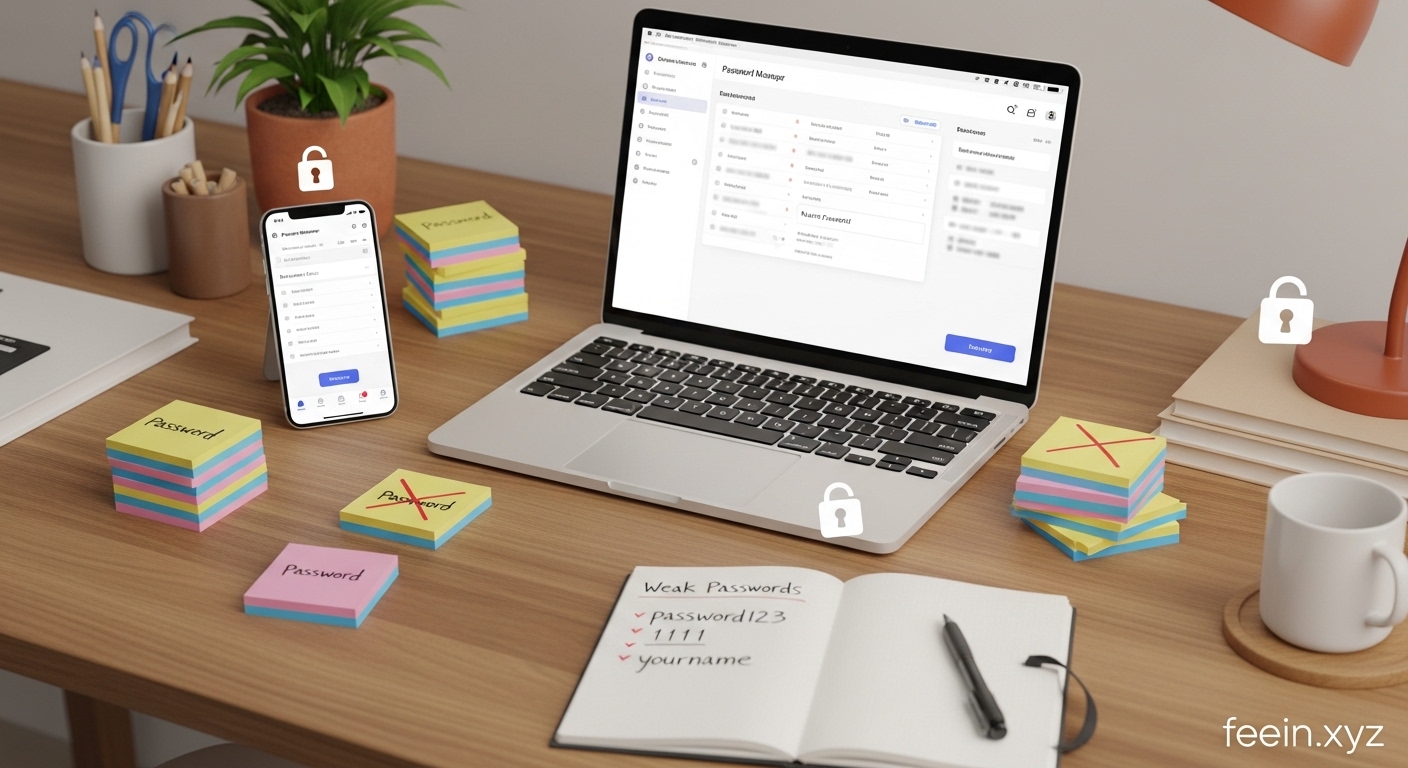
A password manager offers a structured way to organize login credentials in one secure location. Instead of remembering multiple passwords, you can group, label, and access them quickly while maintaining order across devices.
This beginner-friendly guide explains how to organize all your passwords using a password manager, with practical steps, real-world examples, and best practices to help you build a clean and manageable password system.
Why Password Organization Matters
Before using a password manager, many users experience:
- Forgotten passwords
- Duplicate passwords across services
- Time lost resetting credentials
- Disorganized browser autofill entries
- Difficulty managing work and personal accounts
Organizing passwords improves:
- Faster login access
- Reduced confusion
- Better account management
- Clear separation between categories
- Easier updates and maintenance
A structured password system helps users maintain clarity rather than relying on memory.
What Is a Password Manager?
A password manager is a tool that stores login credentials in an encrypted digital vault. It allows users to:
- Save passwords automatically
- Create folders or categories
- Add notes and labels
- Autofill login details
- Sync passwords across devices
Instead of scattered records, everything is organized in one searchable place.
Step-by-Step: How to Organize Your Passwords
Step 1: Start With a Clean Password List
Begin by identifying the accounts you currently use. This may include:
- Email accounts
- Banking services
- Online shopping platforms
- Work tools
- Social media
- Subscriptions
You do not need to add everything at once. Start with the most frequently used accounts.
This approach helps avoid clutter and makes the initial setup easier.
Step 2: Create Categories or Folders
Most password managers allow you to create folders. Organizing by category makes navigation faster.
Example structure:
- Personal
- Work
- Finance
- Shopping
- Social Media
- Utilities
- Subscriptions
This simple structure prevents your vault from becoming crowded.
Step 3: Add Passwords Gradually
Instead of importing everything automatically, some users prefer adding passwords gradually.
This helps:
- Remove outdated accounts
- Rename unclear entries
- Add helpful notes
- Keep the vault organized
Example entry:
Website: Email
Username: yourname@example.com
Folder: Personal
Note: Main inbox
Adding notes improves clarity later.
Step 4: Use Clear Naming Conventions
Naming entries properly makes searching easier.
Good examples:
- Work Email
- Personal Bank Account
- Cloud Storage Personal
- Project Management Tool
Avoid vague names like:
- Login1
- Account
- My Password
Clear names help long-term organization.
Step 5: Use Tags for Better Sorting
Some password managers support tags in addition to folders.
Example tags:
- frequently-used
- work-related
- billing
- shared-access
Tags allow flexible organization beyond folder structure.
Example of a Well-Organized Password Vault
A beginner-friendly structure may look like:
Personal
• Email
• Streaming service
• Cloud storage
Work
• Team dashboard
• Project tool
• File sharing platform
Finance
• Bank account
• Payment service
• Billing portal
This structure keeps accounts grouped logically.
Organizing Passwords Across Devices
One benefit of password managers is syncing across devices.
After organizing on one device, your structure appears on:
- Laptop
- Mobile phone
- Tablet
- Desktop
This ensures consistency and prevents duplicate entries.
To maintain order:
- Avoid creating duplicate entries
- Use the same naming style
- Update passwords in one place
This keeps the vault clean over time.
Tips for Maintaining Organization
Review Your Vault Monthly
Check for:
- Unused accounts
- Duplicate entries
- Old passwords
- Misplaced folders
Regular review keeps the system efficient.
Archive Old Accounts
Instead of deleting entries, move them to an “Archive” folder.
This helps:
- Keep history
- Reduce clutter
- Maintain structure
Use Notes for Context
Some accounts require extra details. Notes can include:
- account purpose
- login instructions
- related email address
This improves clarity for future use.
Common Mistakes to Avoid
Adding Everything Without Structure
This creates a messy vault quickly.
Instead:
Create folders first, then add entries.
Using Inconsistent Naming
Different naming styles make searching difficult.
Use one format consistently.
Ignoring Duplicate Entries
Duplicates lead to confusion during login.
Remove or merge duplicates regularly.
Not Updating Organization
As accounts grow, the vault needs adjustments.
Reorganize occasionally.
Benefits of an Organized Password Manager
A structured password vault provides:
- Faster login access
- Reduced password resets
- Clear account overview
- Easier password updates
- Better separation of work and personal logins
Organization improves both convenience and clarity.
Who Should Use This Approach?
This method works well for:
- Beginners managing multiple accounts
- Remote workers using many tools
- Students with learning platforms
- Small business owners
- Anyone with more than 10 online accounts
The more accounts you manage, the more valuable organization becomes.
Organizing passwords using a password manager simplifies digital life. By grouping accounts into folders, using clear naming, and maintaining structure, users can quickly access credentials without confusion.
A well-organized password manager is not just about storing passwords — it helps create a clean, manageable system for everyday online use.
Starting with a simple structure and gradually refining it ensures long-term organization and ease of use.
FAQ
Do I need technical knowledge to organize passwords?
No. Most password managers provide simple folder and tagging options that beginners can use easily.
How many folders should I create?
Start with 4–6 main categories and expand only if needed.
Should I organize work and personal accounts separately?
Yes. Separating them improves clarity and reduces mistakes.
How often should I reorganize my passwords?
A monthly review is usually enough to keep everything organized.