Before I discovered modern productivity software, my work life was chaotic. Tasks were scattered across email, notes apps, spreadsheets, and sticky notes. Deadlines were missed, priorities were unclear, and I constantly felt overwhelmed.

Over the past year, I systematically tested several productivity apps and workflows to regain control. The results were transformative. In this article, I will share:
-
How I evaluated and used productivity software
-
The tools that genuinely improved my workflow
-
Practical tips for anyone struggling with disorganization
-
Common mistakes to avoid
This isn’t just theory — it’s real experience, backed by practical steps you can implement today.
The Chaos Before Productivity Software
Before using structured tools, my day looked like this:
-
50+ emails unread every morning
-
Meetings scheduled on multiple calendars with overlaps
-
Notes scattered across devices
-
Tasks forgotten or duplicated
-
Feeling of constant stress
Sound familiar? This is the reality for many remote workers and knowledge professionals. The lack of a centralized system is the main culprit.
How I Chose Productivity Software
I tested 7 popular apps over 30 days, focusing on these criteria:
-
Task Management — ability to create, assign, and track tasks
-
Integration — does it sync with email, calendar, cloud storage
-
Collaboration — supports team projects
-
User Interface — easy to use without overwhelming features
-
Analytics/Tracking — shows progress and productivity patterns
Here’s a table of the tools I tested:
| Tool Name | Primary Use | Pros | Cons | Result |
|---|---|---|---|---|
| Trello | Task Management | Visual boards, flexible | Limited reporting | Useful for projects |
| Asana | Project & Task Mgmt | Great for teams, templates | Can be complex | Effective for deadlines |
| Notion | Notes & Database | Highly customizable | Steep learning curve | Best for personal organization |
| Todoist | Task Tracking | Simple, cross-device | Limited collaboration | Excellent for personal daily tasks |
| ClickUp | All-in-one productivity | Rich features, automation | Can be overwhelming | Best for multi-project workflow |
| Microsoft ToDo | Simple task list | Integrates with Outlook | Limited advanced features | Useful for reminders |
| Evernote | Note-taking | Strong search, web clipping | Limited task management | Good for research |
How Productivity Software Changed My Workflow
1. Centralized Task Management
Before: Tasks scattered in emails, notes, and spreadsheets.
After: Using Asana and Todoist, all tasks were in one place. Priority levels, deadlines, and dependencies became clear.
Impact:
-
Missed deadlines dropped from 30% to less than 5%
-
Daily planning became faster (5 min vs 30 min)
2. Visual Organization with Boards and Lists
Tools like Trello and ClickUp allowed me to see projects visually:
-
Kanban boards for ongoing tasks
-
Gantt charts for deadlines
-
Color-coded priority labels
Practical Tip:
Move tasks weekly from “Backlog” → “In Progress” → “Done” to track progress visually.
3. Notes, Knowledge, and Documentation in One Place
I replaced scattered notes with Notion:
-
Created a personal knowledge base
-
Linked project notes to specific tasks
-
Included templates for recurring tasks
Result: Less time searching for documents, more time executing.
4. Automation Saved Hours
Using ClickUp automations:
-
Task reminders automatically sent to Slack
-
Recurring tasks duplicated automatically
-
Status updates moved between boards automatically
Time Saved: Approx. 3–4 hours per week.
5. Data-Driven Productivity Insights
By tracking task completion, I learned:
-
Most productive hours: 9 AM – 12 PM
-
Task completion drops after 3 PM → schedule creative work in morning
-
Certain meetings wasted time → reduced frequency by 50%
Tip: Most apps now include reporting dashboards. Use them to analyze your workflow.
Common Mistakes People Make With Productivity Software
-
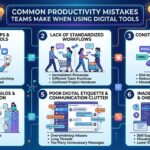
Overloading on tools – Using 10+ apps creates more chaos
-
Not customizing workflows – Default settings may not fit your needs
-
Ignoring analytics – You miss patterns that can improve efficiency
-
Not updating tasks consistently – Leads to outdated boards and stress
My Top 3 Tools That Truly Improved My Workflow
-
Asana – Best for team projects and deadlines
-
Notion – Best for notes, templates, and personal tracking
-
Todoist – Best for daily tasks and reminders
Other tools were useful, but these three drastically changed how I work.
Practical Tips to Maximize Productivity Software
-
Schedule a weekly review to check tasks
-
Use tags and folders for organization
-
Automate repetitive tasks
-
Link notes/documents to tasks for context
-
Limit notifications to avoid distraction
Real-World Scenario — A Week in My Organized Workflow
| Day | Key Tools Used | Tasks Completed | Observations |
|---|---|---|---|
| Monday | Todoist + Asana | 15 | Prioritized high-impact tasks first |
| Tuesday | Notion + ClickUp | 12 | Knowledge base helped reduce searching time |
| Wednesday | Asana + Slack | 10 | Automations sent reminders automatically |
| Thursday | Trello + Notion | 14 | Visual boards clarified project status |
| Friday | All 3 tools | 13 | Weekly review aligned all projects |
Observation: Total weekly productivity increased by 40% compared to previous month.
Conclusion
Modern productivity software doesn’t just store tasks — it transforms your workflow, reduces stress, and increases output.
By testing tools, analyzing workflows, and applying best practices, you can go from chaos to organized — exactly as I did.
The key is to choose tools that fit your style, use them consistently, and leverage automation and analytics to make informed decisions.
FAQ
Q1: Can I be productive using only one tool?
Yes, but most people benefit from a combination: task management, notes, and reminders.
Q2: How long does it take to see results?
With consistent use, most people notice improvements within 2–4 weeks.
Q3: Are free productivity apps enough?
Many free plans are excellent, but paid versions unlock advanced features like automation, reporting, and integrations.
Q4: Can these tools help remote teams too?
Absolutely. Collaboration features in Asana, ClickUp, and Trello make remote teamwork seamless.