Introduction
In today’s digital world, your data is one of your most valuable assets. Photos, documents, project files, and personal information can be lost due to hardware failure, malware, accidental deletion, or system crashes.
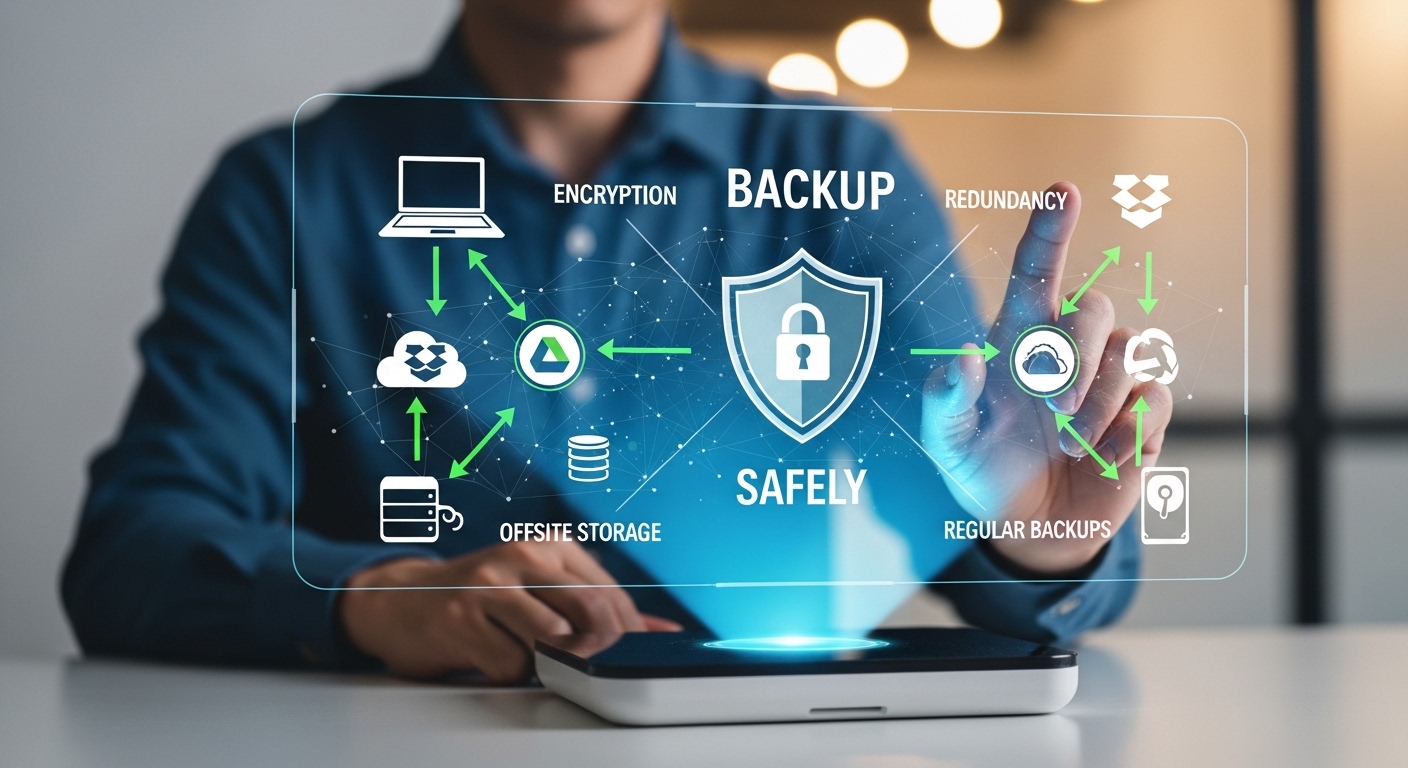
Backing up your data safely is essential to protect yourself from unexpected losses. In this guide, we’ll explain the best practices, methods, and tools to ensure your data stays secure and accessible when you need it.
Why Data Backup Is Important
Backing up data isn’t just for tech experts—it’s a necessity for everyone. Here’s why:
-
Protection Against Hardware Failure: Hard drives and SSDs can fail unexpectedly.
-
Defense Against Malware: Ransomware and viruses can encrypt or delete your files.
-
Accidental Deletion: Mistakes happen; backups let you recover lost files.
-
Data Portability: Access your important files from different devices safely.
Without proper backups, you risk losing irreplaceable files forever.
Common Backup Methods
1. External Hard Drives and SSDs
Using an external hard drive or SSD is one of the simplest and fastest ways to back up large amounts of data.
Advantages:
-
Fast transfer speeds
-
Offline storage (protected from online threats)
-
One-time purchase
Tips:
-
Store drives in a safe place away from direct sunlight or moisture.
-
Consider rotating multiple drives for extra protection.
2. Cloud Backup Services
Cloud backups save your files to online servers. Popular services include Google Drive, Dropbox, OneDrive, and iCloud.
Advantages:
-
Access files from anywhere
-
Automatic syncing
-
Redundancy (multiple server backups)
Tips:
-
Use strong passwords and enable two-factor authentication (2FA).
-
Check your storage limits and subscription plans.
3. Network-Attached Storage (NAS)
NAS devices are storage units connected to your home or office network, allowing multiple users to access and back up data.
Advantages:
-
Centralized storage for multiple devices
-
Can be configured for automatic backups
-
Supports RAID for extra redundancy
Tips:
-
Regularly update NAS firmware
-
Consider encrypted storage for sensitive files
4. USB Flash Drives
For small amounts of data or quick transfers, USB drives are convenient.
Advantages:
-
Portable and inexpensive
-
Simple for quick backups
Tips:
-
Do not rely solely on flash drives for important backups
-
Keep multiple copies in different locations
Best Practices for Safe Data Backup
Following these best practices ensures your backup system is reliable:
-
Follow the 3-2-1 Rule:
-
Keep 3 copies of your data
-
On 2 different media types (e.g., cloud + external drive)
-
1 copy off-site for disaster protection
-
-
Schedule Regular Backups:
-
Automate backups daily, weekly, or monthly depending on importance
-
-
Test Your Backups:
-
Occasionally restore files to ensure backups work correctly
-
-
Encrypt Sensitive Data:
-
Use encryption tools to protect personal or confidential files
-
-
Keep Backup Devices Safe:
-
Store external drives in fireproof or waterproof locations
-
Backup Tools and Software
Here are some reliable tools to simplify the process:
-
Windows Backup & Restore: Built into Windows for automatic backups
-
Time Machine (Mac): Easy-to-use Mac backup system
-
Acronis True Image: Full-disk backup with encryption
-
Backblaze: Affordable cloud backup for unlimited data
Mistakes to Avoid
-
Not backing up frequently – outdated backups are not useful
-
Storing all backups in one place – increases risk of total data loss
-
Ignoring security – unencrypted backups can be stolen
-
Relying only on cloud – internet outages or service issues may block access
Conclusion
Backing up your data safely is not optional—it’s essential. By combining multiple methods like external drives, cloud storage, and NAS, and following best practices like the 3-2-1 rule, you can protect your files against hardware failures, malware, and accidental deletion.
Regular, tested, and secure backups give peace of mind and ensure your valuable data is always recoverable.
FAQ
Q1: How often should I back up my data?
A1: For important files, daily or weekly backups are recommended. Less critical files can be backed up monthly.
Q2: Is cloud backup safe?
A2: Yes, as long as you use a reputable service, strong passwords, and enable two-factor authentication.
Q3: What is the best way to back up large files?
A3: External hard drives or cloud storage services with high capacity are ideal for large files.
Q4: Can I recover files from a corrupted backup?
A4: Only if the backup is not damaged; always maintain multiple backup copies to reduce this risk.