Introduction
Wi-Fi is the backbone of most modern homes, connecting your computers, smartphones, smart devices, and even home security systems. However, an unsecured Wi-Fi network can put your personal data, privacy, and devices at risk. Hackers or unauthorized users can access your network, slow down your internet, or even steal sensitive information.
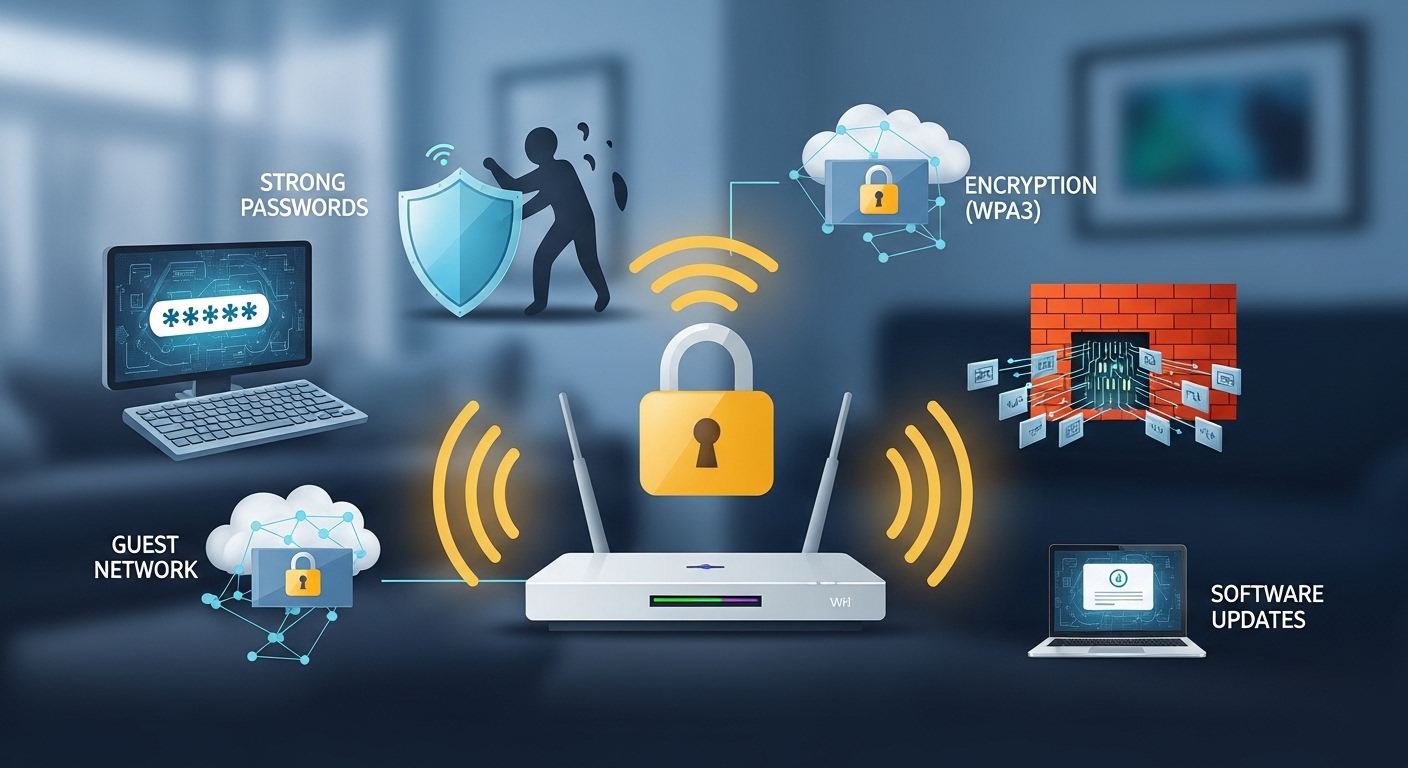
In this guide, we’ll explain how to secure your Wi-Fi network at home, step by step, using practical and easy-to-implement methods.
Why Wi-Fi Security Is Important
Securing your Wi-Fi network is critical for several reasons:
-
Protect personal data: Prevent hackers from accessing passwords, bank accounts, and personal files.
-
Prevent unauthorized usage: Stop neighbors or strangers from using your internet connection.
-
Maintain network performance: Extra devices can slow down your Wi-Fi speed.
-
Protect connected devices: Smart home devices, cameras, and IoT gadgets rely on secure connections to function safely.
Step 1 – Change the Default Router Settings
Routers come with default usernames and passwords, which are publicly known. Hackers often scan networks for these defaults.
Actions to take:
-
Log in to your router’s admin panel (usually via a web browser).
-
Change the default username to something unique.
-
Create a strong, complex password (use letters, numbers, and symbols).
Tip: Avoid using personal information like birthdays or names.
Step 2 – Use Strong Wi-Fi Encryption
Wi-Fi encryption protects the data transmitted between your devices and your router.
Recommended encryption:
-
WPA3 (most secure, if your router supports it)
-
WPA2 (widely supported, still secure)
Avoid: WEP (outdated and easily cracked).
Step 3 – Change Your Wi-Fi Network Name (SSID)
Your Wi-Fi network name, or SSID, is visible to everyone.
Best practices:
-
Avoid using your name or address in the SSID
-
Don’t use default names like “Linksys” or “TP-Link”
-
Use something unique but anonymous
This makes it harder for hackers to identify your network.
Step 4 – Enable a Guest Network
If friends or visitors need Wi-Fi, set up a separate guest network.
Benefits:
-
Keeps your main network private
-
Protects your devices from potential malware on guest devices
Step 5 – Regularly Update Router Firmware
Manufacturers release firmware updates to fix vulnerabilities and improve performance.
How to update:
-
Check your router’s admin panel for firmware updates
-
Follow the manufacturer’s instructions carefully
-
Set a reminder to check every 3–6 months
Step 6 – Use a Strong Password for All Connected Devices
Every smart device connected to your Wi-Fi should have a secure password.
Tips:
-
Avoid “123456” or “password”
-
Use unique passwords for cameras, thermostats, and smart speakers
Step 7 – Disable WPS and Remote Management
-
WPS (Wi-Fi Protected Setup) can be convenient but is often vulnerable. Disable it for better security.
-
Remote management allows router control from the internet—disable it unless necessary.
Step 8 – Monitor Connected Devices
Check regularly which devices are connected to your network.
Steps:
-
Log in to your router admin panel
-
Review the device list
-
Block unknown devices immediately
Step 9 – Consider a Network Firewall
A firewall adds an extra layer of protection by filtering incoming and outgoing traffic.
Options:
-
Many modern routers have built-in firewalls
-
You can use software firewalls on individual devices
Step 10 – Educate Everyone in Your Home
Even with strong security, human error can compromise your Wi-Fi.
Practical tips:
-
Don’t share passwords via unsecured channels
-
Avoid clicking unknown links while on your home Wi-Fi
-
Teach family members basic online safety
Conclusion
Securing your home Wi-Fi network doesn’t have to be complicated. By following these steps—changing default settings, enabling strong encryption, monitoring devices, and educating your household—you can protect your data, devices, and privacy while enjoying fast and reliable internet.
FAQ
Q1: How often should I change my Wi-Fi password?
A1: Every 3–6 months is recommended, or immediately if you suspect unauthorized access.
Q2: Is WPA3 encryption necessary?
A2: If your router and devices support it, WPA3 is the most secure encryption available today.
Q3: Can someone hack my Wi-Fi without knowing my password?
A3: While rare, vulnerabilities in outdated routers or weak encryption can allow unauthorized access. Updating firmware and using strong passwords greatly reduces this risk.
Q4: Should I hide my Wi-Fi network?
A4: Hiding your SSID adds minor security, but it’s not a replacement for strong encryption and passwords.